How to find out what font a website is using
Four ways to see which font a website uses: browser DevTools, a font finder extension, the Network panel and image tools for logos. Plus why the font in the CSS isn’t always the one you see.
There are four reliable ways to find out which font a website uses. A font finder extension is the fastest. Your browser’s developer tools are already installed and just as exact, one element at a time. The Network panel lists every font file the page downloads. And for a logo or a picture, where the letters aren’t real text, an image identifier matches the shapes for you.
The short answer
- Extension: install a font finder such as FontMeter, turn it on and read the font names on the page.
- DevTools: right-click the text, choose Inspect, open the Computed tab and look at Rendered Fonts.
- Network panel: filter by Font and reload to see every font file the site loads.
- Image identifier: for logos and screenshots, upload the image to WhatTheFont or a similar tool.
1. Use a font finder extension
An extension reads the page for you, so you don’t have to open any developer tools. With FontMeter it takes one click:
- Add FontMeter to Chrome (it’s free).
- Open the page and click the FontMeter icon, or press Alt+Shift+F.
- Open the Fonts tab. It lists the fonts that actually render on the page, whether each one is a web font or installed on your computer, and the weights in use.
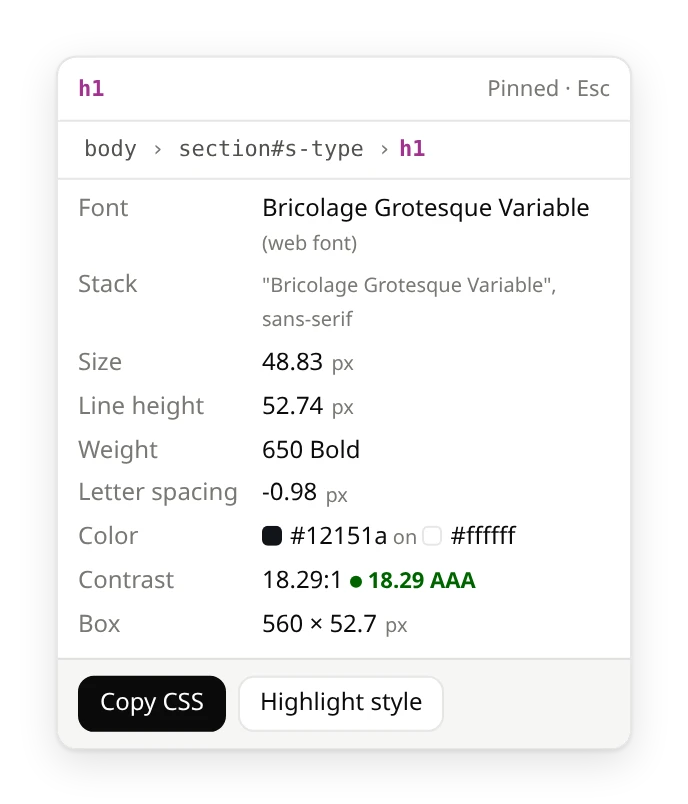
- Hover the label next to any text for its font, the full font stack, size, line height and weight. Copy CSS gives you the whole style.
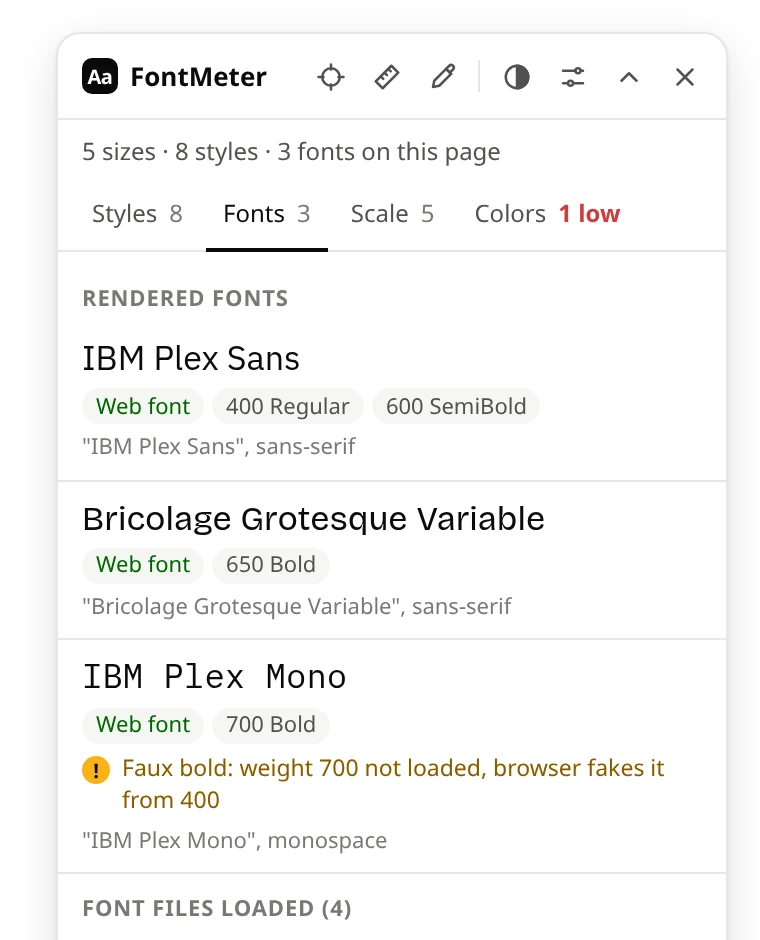
Other font finder extensions work in a similar way. WhatFont shows the font of the text under your cursor, Fonts Ninja adds the foundry and where to buy the font, and Font Finder gives one element’s full details. We compared them here.
2. Check “Rendered Fonts” in DevTools
Every desktop browser can tell you the font of one element, with nothing to install.
Chrome and Edge
- Right-click the text and choose Inspect.
- In the Elements panel, open the Computed tab (next to Styles).
- Scroll to the bottom. Rendered Fonts shows the font the browser used for that element, and whether it came from the network (a web font) or a local file on your computer.
Don’t stop at the font-family line in the Styles tab. That line is a list of fonts the site would like, in order of preference. Rendered Fonts is the one you are actually looking at.
Firefox
Right-click the text, choose Inspect, then open the Fonts tab in the right-hand pane. It shows the fonts used by the selected element and, further down, all fonts on the page.
Safari
Turn on the Develop menu in Safari’s settings (Advanced), right-click the text and choose Inspect Element, then open the Font tab in the sidebar.
The catch: DevTools answers for one element at a time. To see every font and size on a page, you click through element after element, which is where an extension saves time.
3. List the font files in the Network panel
Open DevTools, go to the Network panel, choose the Font filter and reload the page. You get every font file the page downloaded. The file names and addresses often give the font away, and so does the host: fonts.gstatic.com means Google Fonts, use.typekit.net means Adobe Fonts.
This shows what was downloaded, not which text uses it, and it misses fonts installed on your computer. FontMeter’s Fonts tab lists the downloaded font files too, next to the fonts that render.
4. For a logo or an image, use a font identifier
Letters in a logo, a photo, a screenshot or an SVG outline aren’t text, so neither DevTools nor a font finder extension can read them. Upload a picture of the letters to an image identifier instead:
Crop to one line of large, straight letters for the best match. Treat the results as suggestions: logos are often custom lettering or a font that was redrawn.
Why the font in the CSS isn’t always the one you see
Reading font-family from a site’s CSS is the most common way to get the wrong answer. What you see can differ for a few reasons:
- Fallbacks.
font-familyis a wish list. If the first font isn’t installed or doesn’t load, the browser moves down the list. Wikipedia asks for Linux Libertine, then Georgia, then Times; a computer without the first two shows Times. - Missing characters. If a font has no glyph for a character, such as an emoji or a Cyrillic letter, the browser borrows that one character from another font.
- Faux bold and italic. When a site loads only the regular weight but asks for bold, the browser thickens the regular letters. It looks bold, but it isn’t the real bold design.
- Slow or failed loading. While a web font is still downloading, or if it fails, you may be looking at the fallback.
- Renamed fonts. Sites sometimes host a font under their own name, like “Acme Sans”. The font file’s name in the Network panel often reveals the original.

FontMeter checks all of this on every text style: it names the font that renders and warns when the browser falls back, fakes bold or italic, or a font fails to load.
Can you use the font you found?
Fonts are licensed software. A site’s web font license covers that site, so copying its font files doesn’t give you the right to use them. Look the name up instead: many fonts are free on Google Fonts, others are sold by their foundry or included with Adobe Fonts. If a font is custom-made for a brand, look for a similar free font.
Examples: fonts on popular websites
We measured a few well-known sites with FontMeter: what font Netflix, YouTube, WhatsApp, Amazon, Duolingo and Airbnb use, with sizes, weights and free look-alikes.
Questions
What is the easiest way to see what font a website uses?
A font finder extension. Turn it on and the font names appear on the page, with no developer tools involved.
How do I find a website’s font without an extension?
Right-click the text, choose Inspect, and read Rendered Fonts at the bottom of the Computed tab.
Can I find out a website’s font on my phone?
Not directly: phone browsers have no developer tools, and most don’t run desktop extensions. Take a screenshot and use an image identifier, or open the page on a computer.
Why does DevTools show a different font than the CSS?
The CSS lists the fonts the site would like; DevTools’ Rendered Fonts shows the one your browser could actually use. They differ when a font isn’t installed, hasn’t loaded or lacks a character.
See every font on a page in one click.
FontMeter is free. Add it to Chrome, open any page and press Alt+Shift+F. On Microsoft Edge? Get it from Edge Add-ons.
More guides
- Guide
How to view the CSS of any element on a website
A CSS viewer extension, DevTools and the stylesheet itself: how to see and copy the CSS of anything on a page.
- Guide
The best font finder extensions for Chrome
WhatFont, Fonts Ninja, Font Finder, CSS Peeper, VisBug and FontMeter: what each shows, costs and can read.
- Comparison
FontMeter vs WhatFont
A quick font check under the cursor, or every text style on the page at once.
- Comparison
FontMeter vs CSS Peeper: a free alternative
Fonts, type scale, colors and contrast for free, with access only to the tab you turn it on for.
- Comparison
FontMeter vs VisBug
Edit the live page like an artboard, or read its typography and measure it.
- Guide
rem vs em: what’s the difference, and which to use
How rem and em work, why em compounds when nested, a px to rem table, and when to use rem, em or px.
- Guide
pt to px: convert points to pixels
A converter and a table of common sizes: 1pt = 1.333px, 1px = 0.75pt, 12pt = 16px.