The best font finder extensions for Chrome
WhatFont, Fonts Ninja, Font Finder, CSS Peeper, VisBug and FontMeter side by side: what each one shows, what it costs and which sites it can read.
A font finder extension tells you which font a website uses without opening developer tools. They all answer “what font is this?”, but they are built for different jobs: a quick name check, shopping for a font, auditing a page’s whole typography, or editing a page live.
Disclosure: we make FontMeter. To keep this fair, everything about the other extensions comes from their own Chrome Web Store listings and the permissions they ask for, checked on 5 November 2026. Where another tool is the better pick, we say so.
Quick picks
- Name one font, fast: WhatFont
- Find where to get a font, or similar ones: Fonts Ninja
- Check a whole page’s typography (fallbacks, scale, contrast): FontMeter
- Every font detail of one element, and try changes: Font Finder
- Move, resize and edit a live page: VisBug
- Nothing to install: your browser’s DevTools (Inspect, then Computed, then Rendered Fonts)
Side by side
| Extension | Best for | Font that renders | Whole page at once | Type scale | Contrast | Price | Can read |
|---|---|---|---|---|---|---|---|
| FontMeter | Auditing a page’s typography | Yes, with fallback and faux bold warnings | Every text style labeled | Yes, export to CSS, Tailwind, JSON | WCAG AA/AAA on every style | Free | The tab you turn it on for |
| WhatFont | Naming one font fast | Yes, with where it comes from | — | — | — | Free | The tab you turn it on for |
| Fonts Ninja | Finding, bookmarking and buying fonts | Yes, matched from the font file | Summary of the fonts used | — | — | Free | All websites |
| Font Finder | One element’s full font details | Yes, per character | List of fonts in the frame | — | Shows text and background colors | Free | The tab you use it on |
| CSS Peeper | Styles, colors and assets in a side panel | — | Typography overview; hierarchy in paid plans | — | Listed in paid plans | Free plan with sign-up; paid plans | All websites |
| VisBug | Editing a live page like an artboard | — | — | — | Accessibility inspector | Free, open source | The tab you turn it on for |
“—” means the extension’s store listing doesn’t mention it. “The tab you turn it on for” means the extension uses Chrome’s activeTab permission: it can read a page only after you click it there. “All websites” means it asks to read and change data on every site you visit.
FontMeter
FontMeter labels every text style on the page at once, instead of one element under the cursor. A panel lists the fonts that actually render, and warns when the browser falls back from the requested font, fakes bold or italic, or a font fails to load. It also finds the type scale (with the closest ratio and sizes that sit off it), checks every style against WCAG contrast, and has an inspector, a ruler and a color picker for spacing and colors.
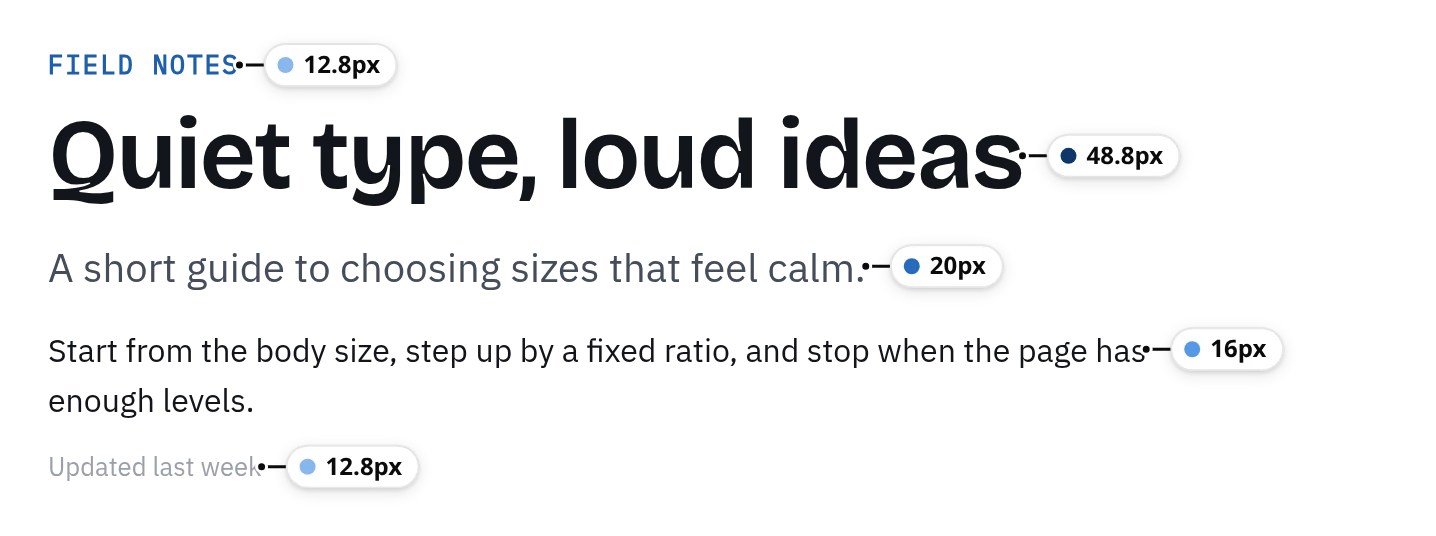
Good to know: it reads text, not images, so it can’t identify a font in a logo. It doesn’t tell you where to buy a font, and it doesn’t edit the page. It runs in Chrome and Edge, not Firefox or Safari. It is also the newest extension here.
WhatFont
The best-known font finder, with about 3 million users (rated 3.8 out of 5). Hover any text to see its font; click for a details panel with the real font name, where the font comes from, size, line height, letter spacing, color and the HTML element, and copy any value or the whole CSS. Version 3.3.0 came out in October 2026.
Pick it when you just want the name of a font with as little interface as possible. FontMeter vs WhatFont.
Fonts Ninja
About 900,000 users and rated 4.9. Hover text for the font name and CSS properties, or get a summary of every font on the page. Fonts Ninja says it analyzes the actual font file, so it stays right when a site renames a font. It is built around finding fonts: it shows the foundry, the number of styles and the price, lets you bookmark fonts into boards, suggests similar typefaces, and searches its catalog. It is also on Firefox and Safari.
Pick it when you want to use the font you found and need to know who sells it. It asks for access to all websites.
Font Finder
About 400,000 users, rated 4.3. Select text or right-click to analyze it: font family (including the font that actually renders, checked character by character), size, line height, spacing, weight, style, colors and the element’s class and ID, each one copyable. You can also change an element’s font inline to try another one, and list all fonts in the current frame.
Pick it for a thorough look at one element, or to test a font swap in place.
CSS Peeper
About 400,000 users, rated 2.6. A side panel for inspecting styles, colors and assets: point at an element to see its properties, browse the colors and typography a site uses, and download its images. The free plan needs a sign-up; copying an element’s CSS and the typography hierarchy are paid features, and its pricing page lists the contrast checker in the paid plans, which are billed yearly. It asks for access to all websites.
Pick it if you also want to export a site’s images and assets. FontMeter vs CSS Peeper.
VisBug
About 200,000 users, rated 4.6. An open-source project from Google Chrome Labs that brings design-tool controls to the browser: move and resize elements, edit text, replace images, and inspect styles, spacing, distance, accessibility and alignment. The last update in the store is from November 2024.
Pick it when you want to try a change on the live page. FontMeter vs VisBug.
No extension: DevTools
Every desktop browser can show the font of one element. In Chrome or Edge, right-click the text, choose Inspect, open the Computed tab and read Rendered Fonts at the bottom. It’s exact, but it’s one element at a time. Step-by-step guide for every browser.
How to choose
- You only need a name: WhatFont or Fonts Ninja.
- You want to get the font: Fonts Ninja.
- You review designs, rebuild a site or check it against a style guide: FontMeter, which shows the whole type system and what the CSS hides.
- You care about what an extension can read: WhatFont, Font Finder, VisBug and FontMeter run only on the tab where you turn them on.
See every font on a page in one click.
FontMeter is free. Add it to Chrome, open any page and press Alt+Shift+F. On Microsoft Edge? Get it from Edge Add-ons.
More guides
- Guide
How to find out what font a website is using
DevTools, a font finder extension, the Network panel and image tools, and why the CSS font isn’t always the one you see.
- Guide
How to view the CSS of any element on a website
A CSS viewer extension, DevTools and the stylesheet itself: how to see and copy the CSS of anything on a page.
- Comparison
FontMeter vs WhatFont
A quick font check under the cursor, or every text style on the page at once.
- Comparison
FontMeter vs CSS Peeper: a free alternative
Fonts, type scale, colors and contrast for free, with access only to the tab you turn it on for.
- Comparison
FontMeter vs VisBug
Edit the live page like an artboard, or read its typography and measure it.
- Guide
rem vs em: what’s the difference, and which to use
How rem and em work, why em compounds when nested, a px to rem table, and when to use rem, em or px.
- Guide
pt to px: convert points to pixels
A converter and a table of common sizes: 1pt = 1.333px, 1px = 0.75pt, 12pt = 16px.