How to view the CSS of any element on a website
Three ways to view a website’s CSS in Chrome: a CSS viewer extension that shows an element’s styles on hover, DevTools for every rule, and view-source for the whole stylesheet. With steps to copy the CSS.
There are three ways to view the CSS of a website in Chrome. A CSS viewer extension shows an element’s styles when you point at it. DevTools lists every rule that applies to an element and where it comes from. And the stylesheet itself is one click away if you want the whole file. Which one to use depends on whether you want a quick answer or the full picture.
The short answer
- CSS viewer extension: turn on FontMeter, press Inspect and click an element. Its font, color, padding, margin, border, radius and background appear in a card, with a Copy CSS button.
- DevTools: right-click the element, choose Inspect and read the Styles and Computed tabs.
- The stylesheet: open DevTools, go to Sources and open the page’s .css files.
1. Use a CSS viewer extension
A CSS viewer extension is the fastest way to answer “what is this button’s padding?” or “what font and color is this heading?”. You don’t open any developer tools and you don’t read through rules that were overridden: you see the values the browser ended up with. With FontMeter:
- Add FontMeter to Chrome (it’s free, with no account).
- Open the page and click the FontMeter icon, or press Alt+Shift+F.
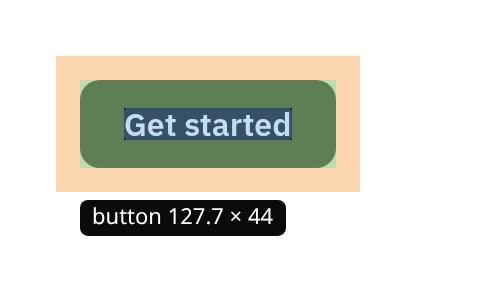
- Press Inspect in the panel and move over the page. Each element shows its size, with its margin and padding drawn around it.
- Click an element to pin it. The card lists its CSS: font family and the full font stack, size, line height, weight, color, display, padding, margin, border, border radius and background.
- Press Copy CSS to put those declarations on your clipboard.
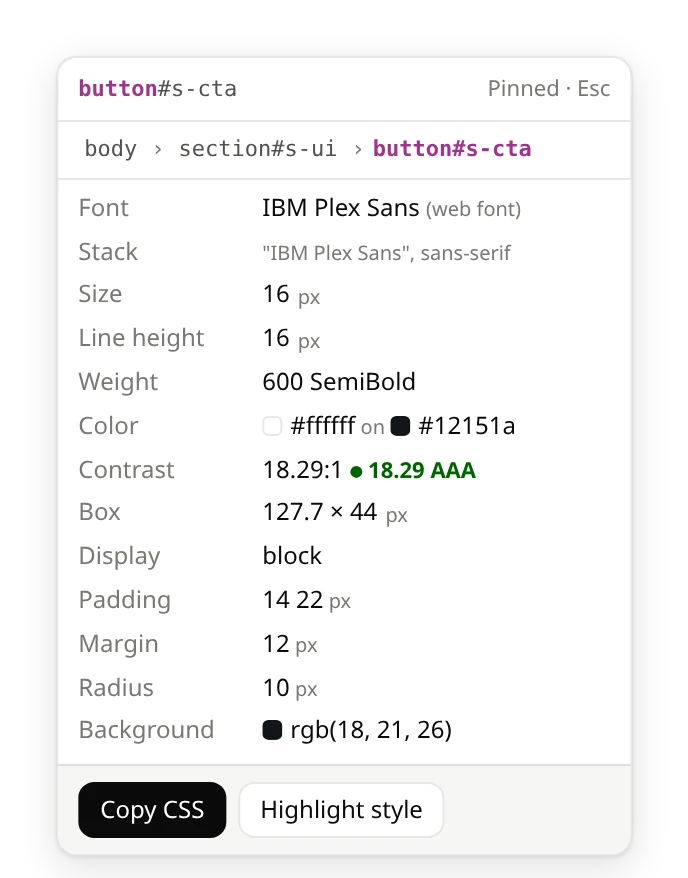
The arrow keys move the selection up to the parent, down to the first child and across to the siblings, which helps when the element you want sits under another one. Press Esc to leave Inspect.
What the copied CSS looks like
Copy CSS gives plain declarations you can paste into a stylesheet or a design tool. Values that are still at their defaults (no padding, no border, a transparent background) are left out, so the result stays short. For a typical button it has this shape:
font-family, font-size, line-height, font-weight, color, then display, padding, border, border-radius and background-color, plus margin, position, box-shadow and opacity when the element sets them.
These are computed values: what the browser actually applied after the whole cascade. That is usually what you want when you rebuild a component or check a design against its spec. It is not the site’s source CSS, so you won’t see selectors, variables, media queries or hover states. For those, use DevTools.
2. Use DevTools for every rule
Chrome, Edge and every other desktop browser have a full CSS inspector built in:
- Right-click the element and choose Inspect.
- The Styles tab lists every rule that matches the element, in order of priority, with the file and line each one comes from. Overridden declarations are struck through.
- The Computed tab shows the final value of every property and a diagram of the box model. Expand a property to see which rule won.
- To copy, right-click a rule and choose Copy rule or Copy all declarations. Right-clicking the element in the Elements tree gives Copy, then Copy styles.
DevTools is the right tool when you need to know why a style applies: which selector set it, what it overrides, what changes on hover or at another screen width. The price is speed. It shows one element at a time, and a single button on a large site can match dozens of rules.
3. Open the stylesheet
To read a site’s CSS as a file, open DevTools, go to the Sources tab and look for the .css files in the page tree. Most sites ship minified CSS on one long line: press the { } button at the bottom of the editor to format it. The Network tab, filtered by CSS, lists the same files with their sizes after a reload.
This is the way to go if you study how a site organises its CSS or look for its custom properties and breakpoints. For the styles of one element it is the slowest of the three.
Which one to use
| You want to… | Use |
|---|---|
| Check an element’s font, color, padding or radius | A CSS viewer extension |
| Copy an element’s look into your own CSS | A CSS viewer extension, or Copy styles in DevTools |
| See every text style and color on the page at once | FontMeter’s Styles, Scale and Colors tabs |
| Find out why a style applies, or debug your own CSS | DevTools, Styles tab |
| See hover states, media queries and CSS variables | DevTools |
| Read the whole stylesheet | DevTools, Sources tab |
Common questions
Can I view the CSS of any website?
Yes. CSS is sent to your browser so it can draw the page, so all of it can be read. Extensions can’t run on browser pages such as chrome://settings or on the Chrome Web Store, and FontMeter doesn’t read text inside iframes yet.
Is a CSS viewer extension safe?
Look at what it asks for. Many ask to read and change your data on all websites. FontMeter uses Chrome’s activeTab permission: it can read a page only after you click its icon on that tab, and it sends nothing anywhere.
Can I edit the CSS too?
Not with FontMeter: it reads the page and never changes it. To try changes on a live page, edit the values in the DevTools Styles tab, or see FontMeter vs VisBug.
How do I find only the font?
The same card shows it, and the Fonts tab lists every font the page really renders. See how to find out what font a website is using.
See every font on a page in one click.
FontMeter is free. Add it to Chrome, open any page and press Alt+Shift+F. On Microsoft Edge? Get it from Edge Add-ons.
More guides
- Guide
How to find out what font a website is using
DevTools, a font finder extension, the Network panel and image tools, and why the CSS font isn’t always the one you see.
- Guide
The best font finder extensions for Chrome
WhatFont, Fonts Ninja, Font Finder, CSS Peeper, VisBug and FontMeter: what each shows, costs and can read.
- Comparison
FontMeter vs WhatFont
A quick font check under the cursor, or every text style on the page at once.
- Comparison
FontMeter vs CSS Peeper: a free alternative
Fonts, type scale, colors and contrast for free, with access only to the tab you turn it on for.
- Comparison
FontMeter vs VisBug
Edit the live page like an artboard, or read its typography and measure it.
- Guide
rem vs em: what’s the difference, and which to use
How rem and em work, why em compounds when nested, a px to rem table, and when to use rem, em or px.
- Guide
pt to px: convert points to pixels
A converter and a table of common sizes: 1pt = 1.333px, 1px = 0.75pt, 12pt = 16px.