FontMeter vs WhatFont
WhatFont shows the font of the text under your cursor. FontMeter labels every text style on the page and adds fallbacks, faked bold, the type scale, contrast and spacing. When to use which.
WhatFont and FontMeter both tell you which font a website uses. The difference is how much of the page you see at once. WhatFont answers for the text under your cursor. FontMeter labels every text style on the page, then adds what a single lookup can’t show: fallback fonts, faked bold, the type scale, contrast and spacing.
Disclosure: we make FontMeter. What we say about WhatFont comes from its Chrome Web Store listing and the permissions it asks for, checked on 5 November 2026.
The short version
- Use WhatFont when you want the name of one font with as little interface as possible.
- Use FontMeter when you review a design, rebuild a site or check it against a style guide, and need every font, size and color on the page.
What they have in common
- Both are free, with no account.
- Both ask for the same three permissions: activeTab, scripting and storage. Neither can read a page until you click it on that tab.
- Both show the font that renders, not just the CSS font list, and let you copy the CSS.
Feature by feature
| FontMeter | WhatFont | |
|---|---|---|
| Font of the text under the cursor | Yes, hover a label | Yes, hover any text |
| Details on click | Font, stack, size in px/rem/em, line height and ratio, weight, letter spacing, color, contrast, line length | Font name, where it comes from, size, line height, letter spacing, color, HTML element |
| Every text style labeled at once | Yes | — |
| All fonts that render on the page | Yes, with weights and font files | — |
| Fallback, faux bold and failed-load warnings | Yes | — |
| Type scale | Yes, with ratio; export to CSS, Tailwind, JSON | — |
| Contrast | WCAG AA/AAA on every style; failing text outlined | — |
| Spacing and colors | Inspector with box model, ruler, color picker, page palette | Text color in several formats |
| Users (Chrome Web Store) | New in 2026 | About 3 million, rated 3.8 |
“—” means WhatFont’s store listing doesn’t mention it.
When WhatFont is the better pick
WhatFont is small and quick. If all you want is a font name, hover, read, done: there is no panel to look at. It has been around for years and millions of people use it, and its October 2026 update (3.3.0) added a redesigned details panel with the real font name and where the font comes from.
When FontMeter is the better pick
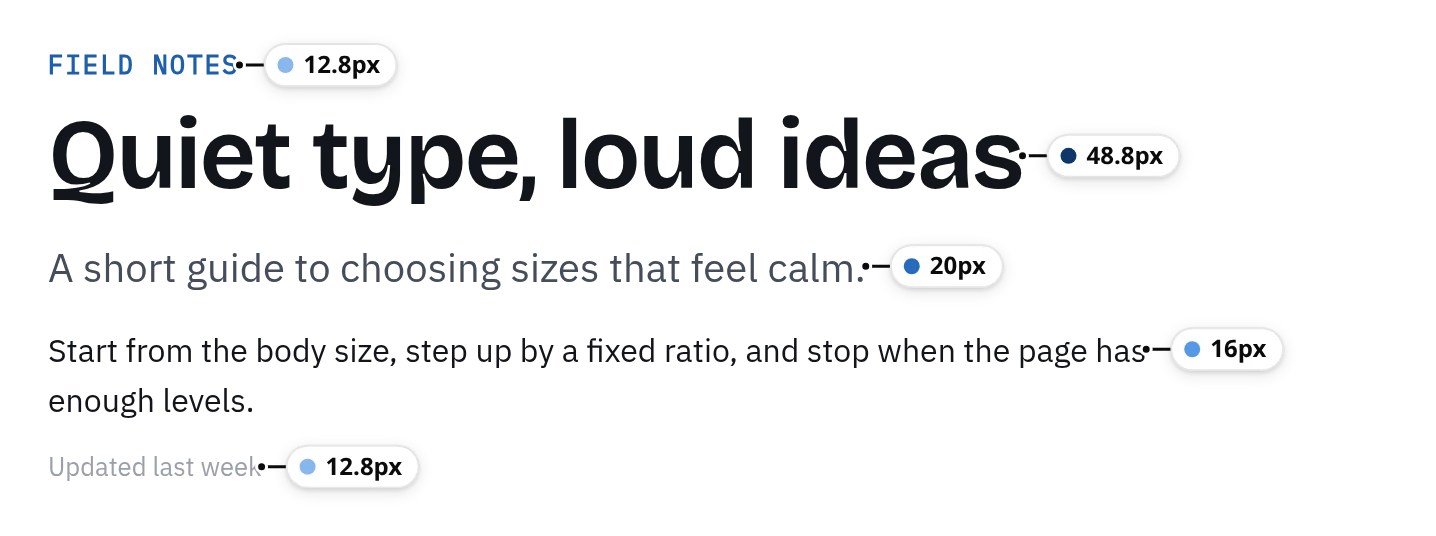
When the question is bigger than one font. FontMeter puts a label beside every text style, so you see the hierarchy of a page in one look: which sizes it uses, which fonts render, and where something is off.
- Fonts that don’t match the CSS. The Fonts tab warns when the browser falls back from the requested font, fakes a bold or italic that wasn’t loaded, or a font file fails.
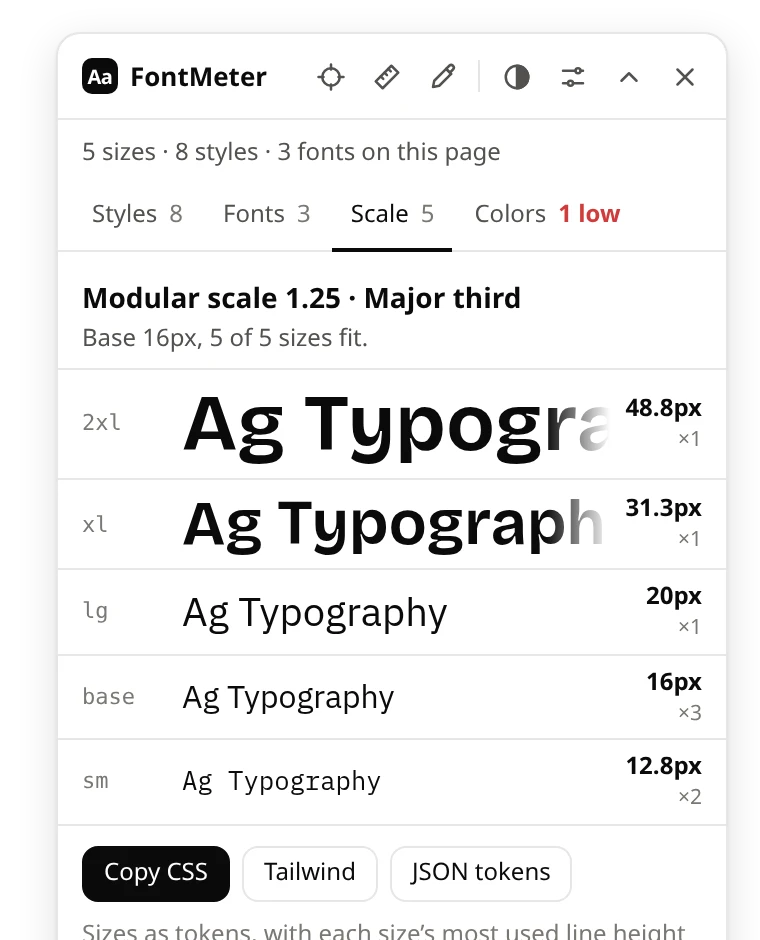
- The type scale. All sizes as tokens (sm, base, lg…), the closest modular ratio and the sizes that sit off it. Export as CSS variables, a Tailwind v4 theme or JSON design tokens.
- Contrast and spacing. Text below WCAG AA is listed and outlined on the page; the inspector shows margin and padding and measures distances.
Switching from WhatFont
Add FontMeter, open a page and press Alt+Shift+F (or click the icon). Hover a label for the same details WhatFont shows, or open the Fonts tab for the whole page. You can keep both installed.
Comparing more tools? See the best font finder extensions.
See every font on a page in one click.
FontMeter is free. Add it to Chrome, open any page and press Alt+Shift+F. On Microsoft Edge? Get it from Edge Add-ons.
More guides
- Guide
How to find out what font a website is using
DevTools, a font finder extension, the Network panel and image tools, and why the CSS font isn’t always the one you see.
- Guide
How to view the CSS of any element on a website
A CSS viewer extension, DevTools and the stylesheet itself: how to see and copy the CSS of anything on a page.
- Guide
The best font finder extensions for Chrome
WhatFont, Fonts Ninja, Font Finder, CSS Peeper, VisBug and FontMeter: what each shows, costs and can read.
- Comparison
FontMeter vs CSS Peeper: a free alternative
Fonts, type scale, colors and contrast for free, with access only to the tab you turn it on for.
- Comparison
FontMeter vs VisBug
Edit the live page like an artboard, or read its typography and measure it.
- Guide
rem vs em: what’s the difference, and which to use
How rem and em work, why em compounds when nested, a px to rem table, and when to use rem, em or px.
- Guide
pt to px: convert points to pixels
A converter and a table of common sizes: 1pt = 1.333px, 1px = 0.75pt, 12pt = 16px.